Free AI Photo Themes (HTML Tool)
HTML Tool

Try it here
If the tool does not load here, use the download link: index.html.
What this is
Who it's for: anyone who wants a fun new look for their own photo — a retro 80s portrait, an older-age look, a Stone Age style, or a respectful Madinah or Makkah photo frame to share with family and friends.
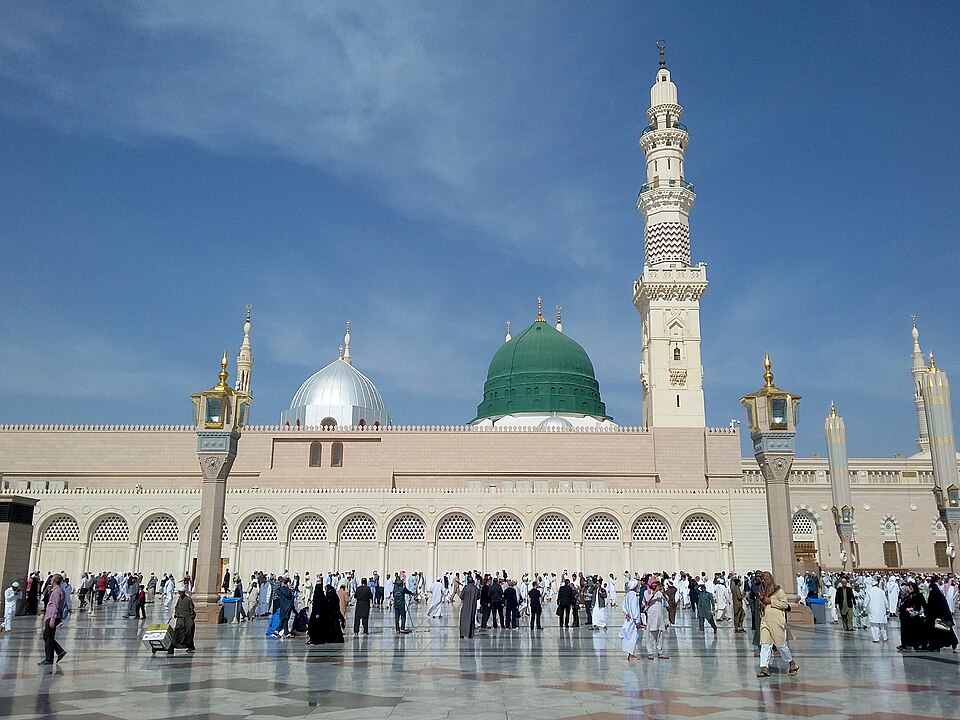
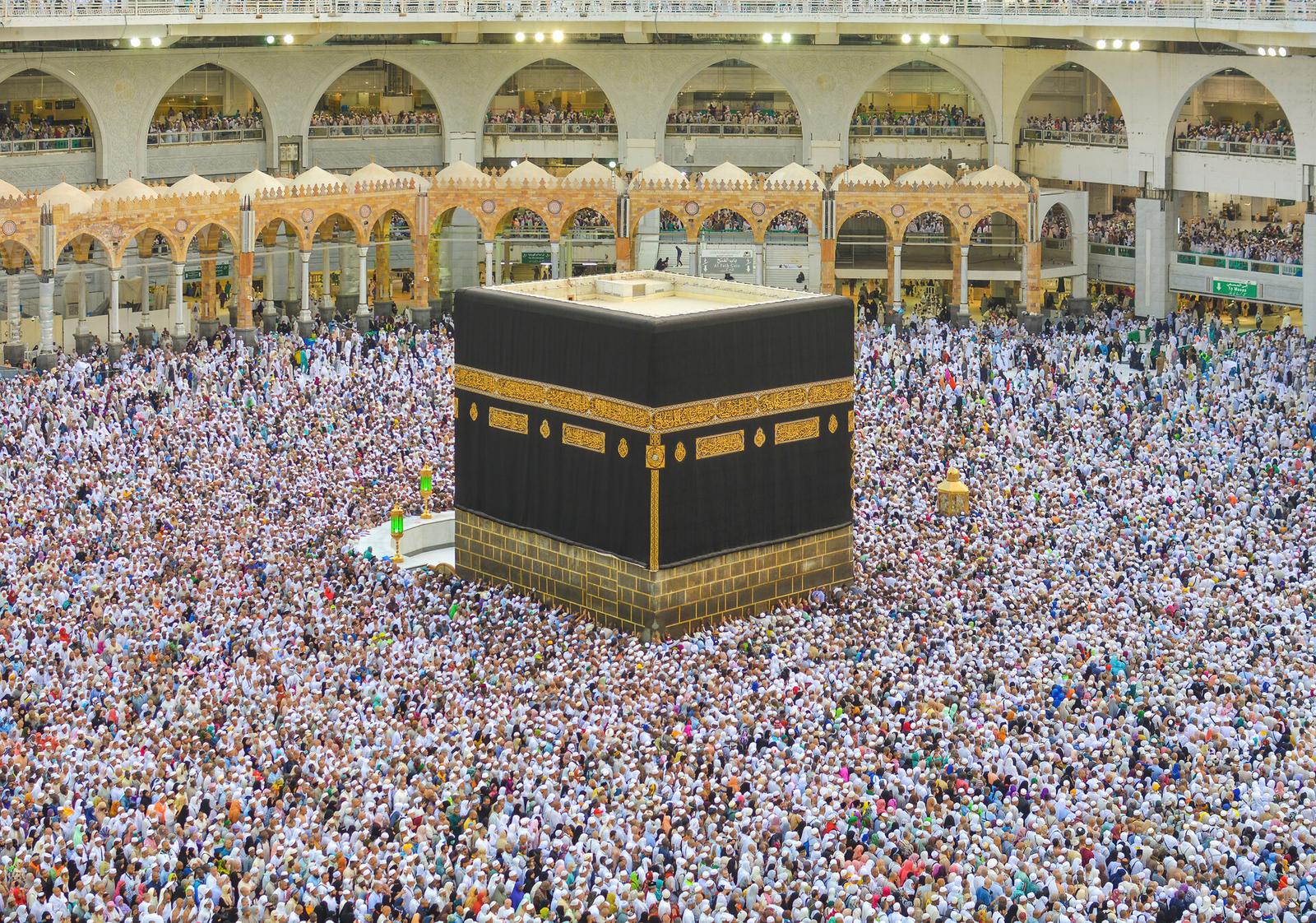
Upload your photo, pick one of five themes, and download the result. The 80s, Older Age and Stone Age looks are colour filters that run in your browser. Madinah and Makkah are photo frames: your photo is placed in a gold frame in front of a real photograph of the Green Dome of the Prophet's Mosque or the Kaaba, as a “my dream visit” keepsake. Free in full — download it and use it on your own photos.
Your photo never leaves your device. Nothing is uploaded to any server, nothing is stored, and there is no account and no sign-up. Every downloaded photo carries a small corner watermark that reads “Generated by thefreelancerkit.com”.
Please read the honest note on the tool before you share a picture: the retro looks are filters, not real AI face-ageing, and the Madinah and Makkah frames are keepsakes — they do not mean you were actually there.
User manual
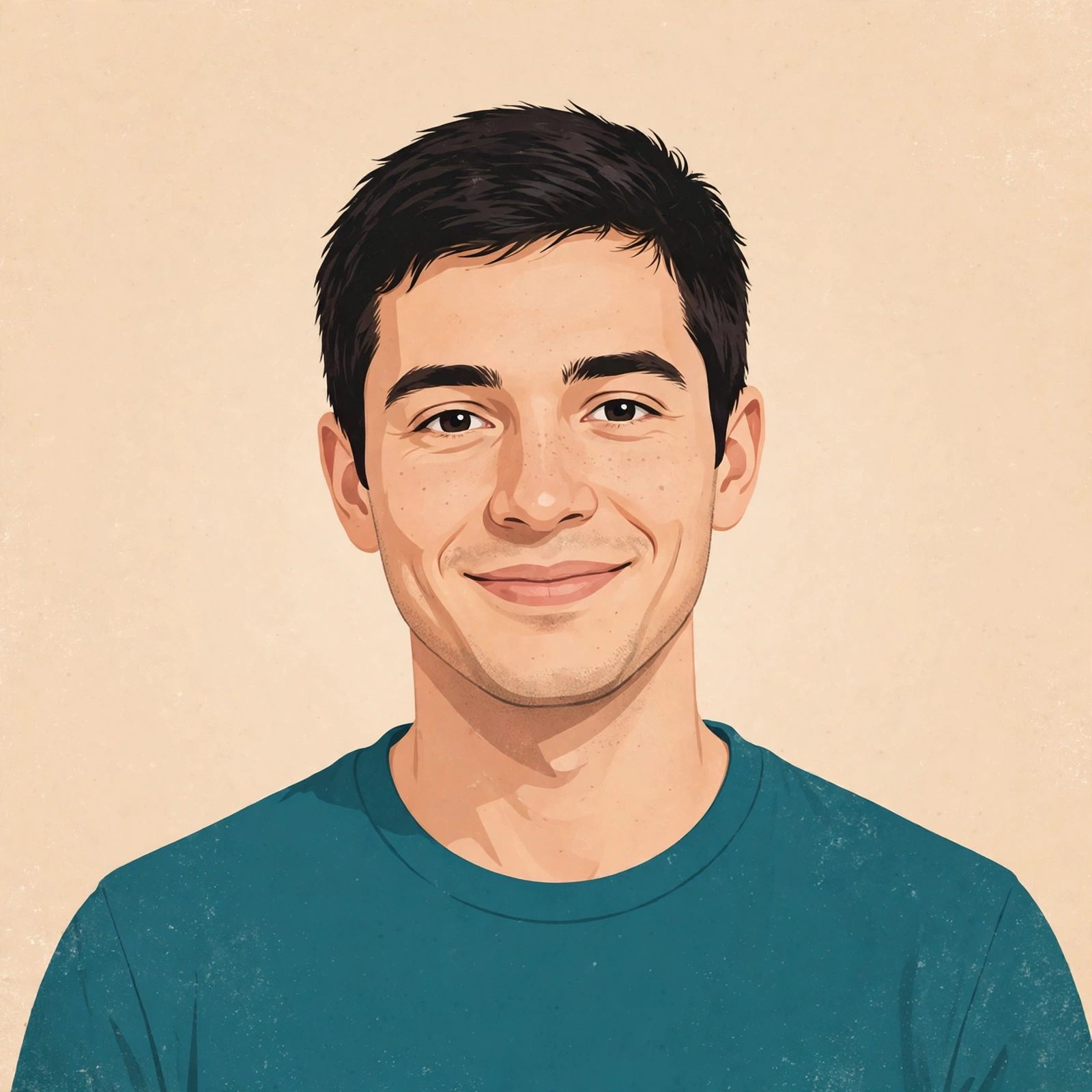
- Tap Upload your photo and choose a clear, front-facing photo. Or tap Use a sample photo to try the themes first.
- Pick a theme: 80s Look, Older Age, Stone Age, Put my photo in Madinah, or Put my photo in Makkah.
- Use the zoom slider to frame your face nicely inside the picture.
- Tap Download photo to save a PNG, or Share photo to send it straight to WhatsApp, Facebook or any other app on your phone.
Requirements
Any modern web browser on a phone or computer. No install, no account, no internet needed after the page has loaded.
Download details
Format: HTML Tool
What is inside: index.html + photo-madinah.jpg + photo-kaaba.jpg + demo-portrait.webp
Download free — index.html (13.8 KB)
- index.html — 13.8 KB
- photo-madinah.jpg — 167.6 KB
- photo-kaaba.jpg — 597.8 KB
- demo-portrait.webp — 234.8 KB
To use the tool offline, download all four files into one folder, with the three photos inside a folder called assets next to index.html. Then open index.html in any browser.
Questions
Is this real AI ageing — will I really look like that at 80?
No. The Older Age look is a gentle aged-photo filter: it changes the colours and mood of your picture. It does not predict what you will look like, and it does not change your face shape. Treat it as a fun filter, not a forecast.
Are the Madinah and Makkah pictures real photographs?
Yes. The Madinah picture is a real photograph of the Green Dome of the Prophet's Mosque (Wikimedia Commons), and the Makkah picture is a real photograph of the Kaaba in Masjid al-Haram (House of Saud). Your photo is placed in a frame in front of them as a “my dream visit” keepsake. It does not mean you were there, and the watermark on every download says so.
Is my photo uploaded anywhere?
No. The tool runs entirely in your browser. Your photo is never sent to our server or to anyone else, and nothing is stored after you close the page.
Can I share the picture on Facebook or WhatsApp?
Yes. Tap Share photo on your phone to send it to any app, or download the PNG and post it yourself. Every picture carries a small “Generated by thefreelancerkit.com” watermark in the corner.
What size is the downloaded photo?
1080 by 1080 pixels — a square photo that fits Facebook, Instagram and WhatsApp profile pictures and posts.
How to get a good result from your photo
A clear, front-facing photo gives the best result in every theme. The tool only changes colours and framing — it cannot fix a dark, blurry or sideways photo — so the photo you upload decides the quality of the picture you download.
Step by step
- Pick a photo taken in daylight, facing the camera, with your whole face visible and nothing covering it.
- Upload it, then try each theme before you settle. The 80s look suits bright outdoor photos; the Madinah and Makkah frames suit a plain portrait, because the frame and the holy-site photo need a clean picture to sit against.
- Use the zoom slider so your face fills the frame nicely — too far away and the picture looks empty, too close and the top of your head is cut off.
- Download the PNG and look at it once at full size before you share it. Check the watermark is in the corner and the text on the frame reads correctly.
- Share it with a line of your own, for example “My dream visit to Madinah” — people respond to the story, not just the picture.
Worked example
A freelancer in Lahore takes a simple daylight selfie against a plain wall and picks “Put my photo in Makkah”. He zooms in slightly so his face fills the gold frame, downloads the square PNG, and shares it to his family WhatsApp group with the words “My dream visit — Makkah, insha'Allah one day for real”. The picture is clearly a keepsake, the watermark is visible, and nobody mistakes it for a real visit.
Common mistakes
- Uploading a group photo or a photo taken from far away. The frame is built for one face, close up.
- Using a photo with sunglasses, a mask or a hand over the face. The filter cannot see the face properly and the result looks odd.
- Sharing the Madinah or Makkah frame with words that claim you were actually there. The frame is a keepsake — say so, and the picture stays respectful.
- Downloading only index.html and wondering why the Madinah and Makkah themes show a plain background offline. Those themes need the two photos in the assets folder beside index.html.
When not to use it
Do not use this tool on anyone else's photo without their permission, and do not use the Madinah or Makkah frames to pretend you visited when you did not. Do not upload photos of children to any website that asks for them — this page never asks, because everything stays in your browser. If you need a real, accurate picture of how you will look when older, no free filter can give it to you.